Semua Kod BloxSwaps Aktif (2026)
Dapatkan semua kod BloxSwaps aktif dan pelajari cara menebusnya untuk syiling bonus. Panduan lengkap kepada sistem kod dan pencapaian dagangan di BloxSwaps.


Temui pandangan, kemas kini, dan kisah terkini daripada pasukan kami
Dapatkan semua kod BloxSwaps aktif dan pelajari cara menebusnya untuk syiling bonus. Panduan lengkap kepada sistem kod dan pencapaian dagangan di BloxSwaps.
Lihat semua kod MM2 aktif dan tamat tempoh di Roblox, serta cara menebusnya melalui menu Inventori untuk eksklusif percuma
Tukar barangan MM2 dengan selamat menggunakan laman web pertukaran terbaik yang tersedia. Bandingkan platform automatik, laman rakan-ke-rakan, dan
Tingkatkan ketepatan sasaran anda dalam MM2 Aim Trainer dengan kod penuding tersuai! Terokai gaya terbaik untuk ketepatan, kebolehlihatan, dan
Ketahui apa itu MM2 Godly, mengapa semua orang nampaknya terobsesi untuk memilikinya. Dan bagaimana untuk mendapatkan Godly untuk diri anda sendiri!
Memikirkan untuk menggunakan skrip auto farm MM2? Ketahui cara ia berfungsi, risiko yang terlibat, dan sama ada ia idea yang baik?
Pelajari cara terpantas untuk menambang syiling dalam MM2, peta terbaik untuk digunakan, dan sama ada Elite GamePass berbaloi untuk dibeli.
Semak semua kod Adopt Me yang aktif dan telah tamat tempoh, serta cara menebusnya di Kiosk Safety Hub berhampiran ejen Ruhi untuk Bucks percuma
Musim 2 MM2 belum dilancarkan lagi, tetapi petandanya terus bertimbun dengan pantas. Berikut adalah petunjuk, kebocoran, dan yang dijangka
Ketahuilah apa itu Penyalahgunaan Pentadbir dalam Adopt Me, bila acara seterusnya dijadualkan, dan langkah tepat untuk menyertai dan menuntut milik anda
 Murder Mystery 2၄၂ artikel
MM2 memacu penarafan senarai peringkat setiap kelebihan dari S hingga D, dengan harga tepat, masa cooldown, dan bila setiap satu sebenarnya memenangi pusingan.
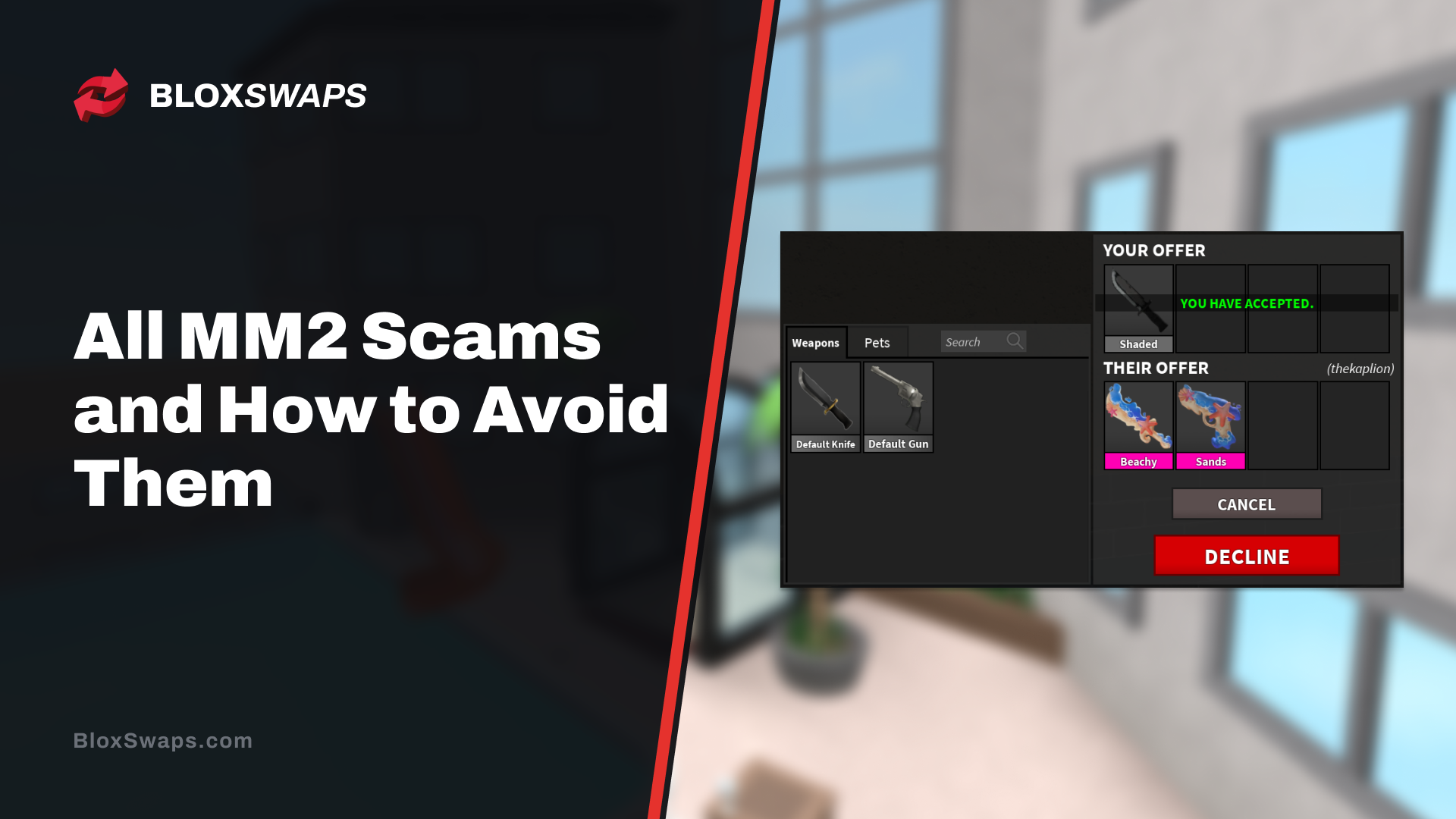
Pelajari penipuan MM2 yang paling biasa, termasuk orang tengah palsu, perdagangan amanah, dan pancingan, serta petua praktikal untuk melindungi anda
Bandingkan tempat terbaik untuk menyemak nilai item MM2, termasuk BloxSwaps, MM2Values, Traderie, Supreme Values, dan MM2 Rocks, disusun mengikut ketepatan.
 Adopt Me၃၈ artikel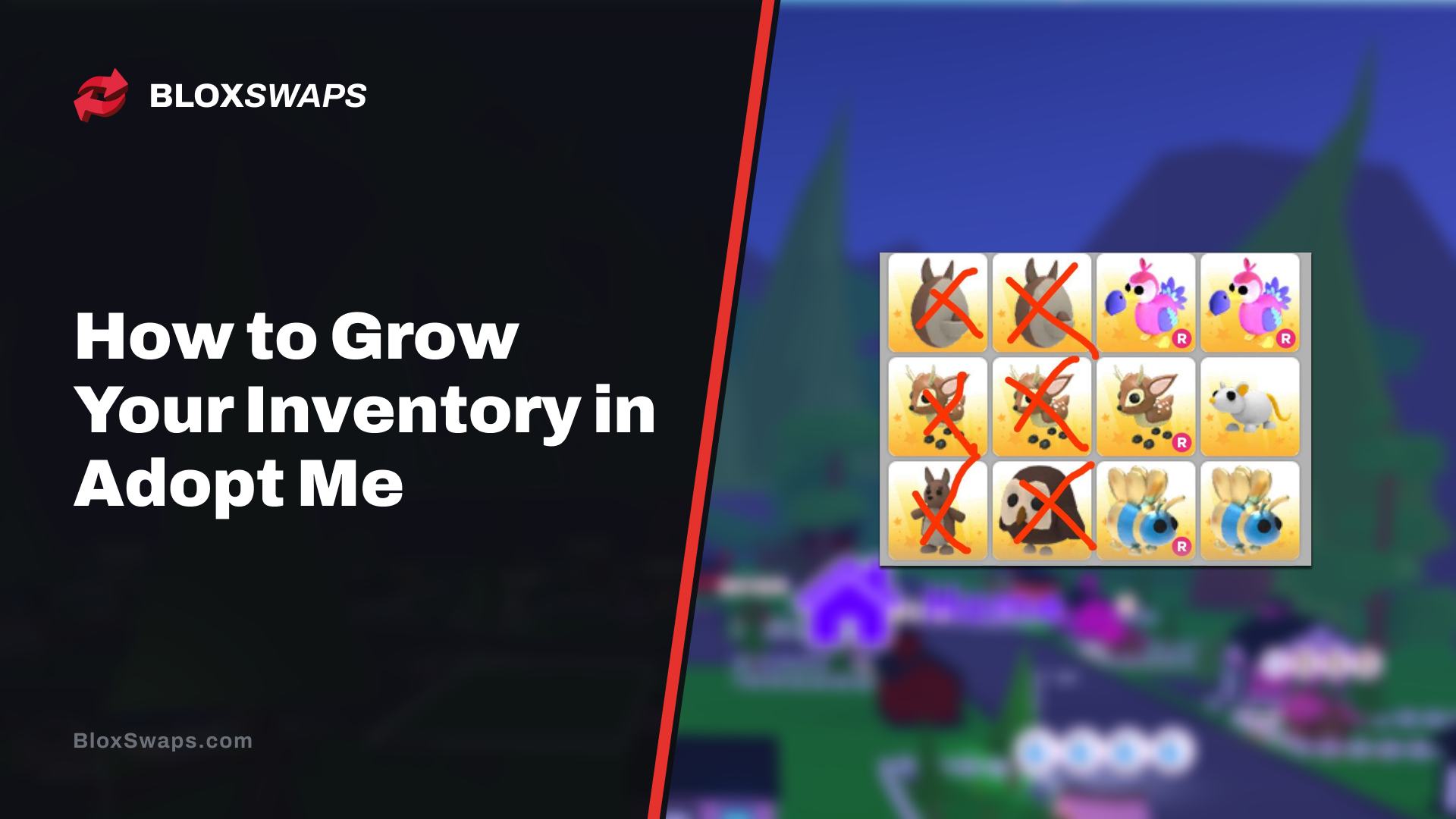
Petua dagangan Adopt Me yang praktikal untuk membesarkan inventori anda dengan lebih pantas dengan membaca permintaan sebenar, mengelakkan yang buruk
Lihat bila kemas kini Adopt Me seterusnya tiba, apa yang dibawa oleh New Egg, dan sama ada acara Penyalahgunaan Pentadbiran mingguan masih berlangsung
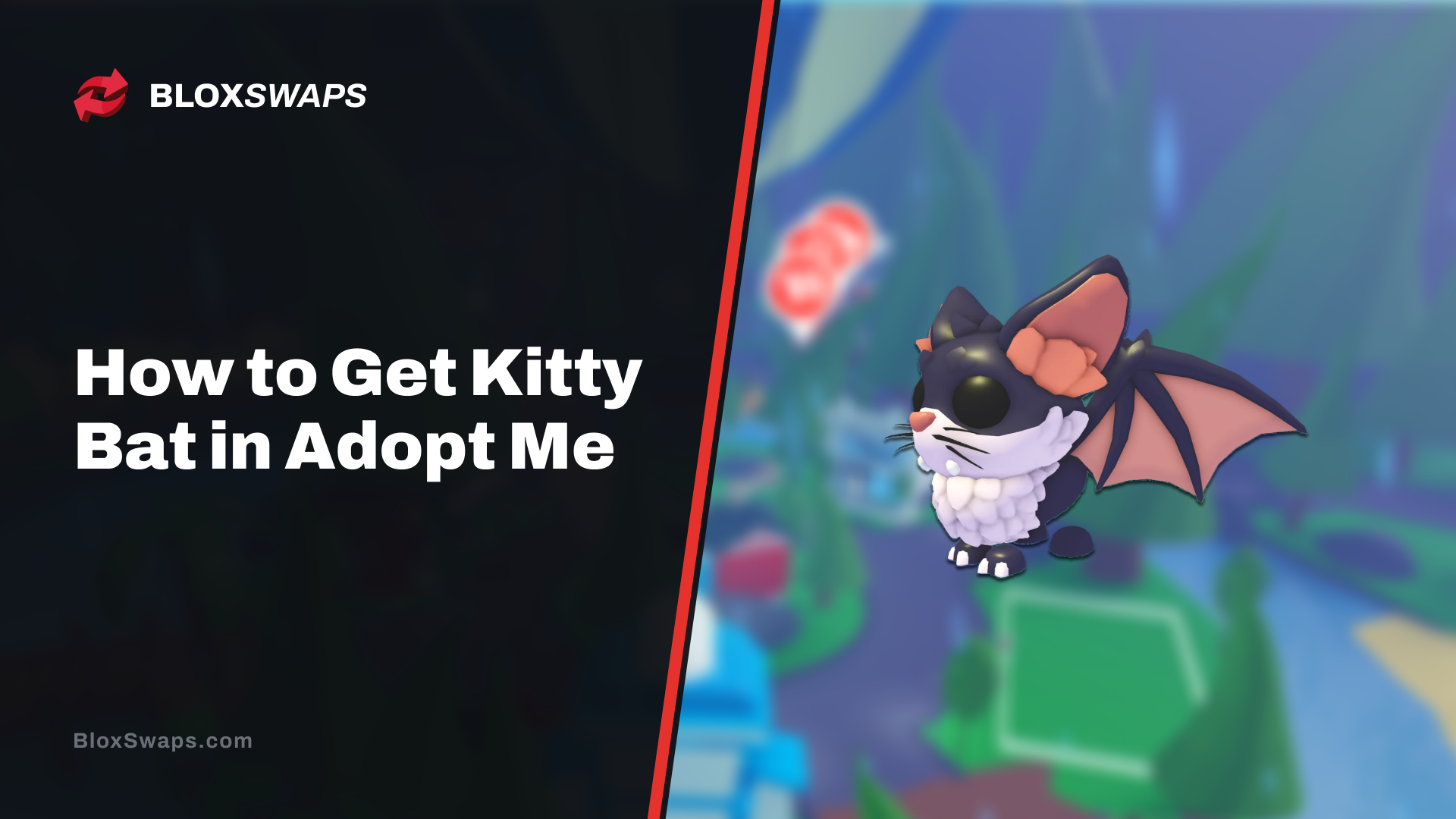
Kitty Bat meninggalkan Acara Halloween Adopt Me pada 3 November 2025. Berikut cara ia dijinakkan dan cara mendapatkannya sekarang melalui perdagangan
 Blox Fruits၂၁ artikel
Setiap joran memancing Blox Fruits, umpan, dan pesona dijelaskan, serta bagaimana Angler, tahap kepercayaan, dan peti karam berfungsi bersama.
Setiap bangsa dalam Blox Fruits dijelaskan, dari empat tempat kelahiran permulaan hingga Ghoul, Cyborg, dan Draco, serta bagaimana V1 hingga V4
Pelajari apa yang dilakukan oleh aksesori Blox Fruits, cara mendapatkannya, dan peraturan utama seperti slot peralatan tunggal, kelangkaan, dan pentadbir
 99 Nights in the Forest၁၁ artikel
99 Nights in the Forest Modus Sukar dijelaskan, termasuk cara membuka kuncinya, meter kerosakan, keadaan rift, dan kelas terbaik untuk bertahan hidup.
Lihat setiap lencana langsung dalam 99 Nights in the Forest, betapa langkanya setiap satu, dan apa yang diperlukan untuk memperolehnya, termasuk yang terbaru
Panduan binaan asas penuh 99 Malam di Hutan yang merangkumi setiap peringkat Bangku Penjanaan, kos struktur, dan barangan pertahanan terbaik menentang serangan
Rincian mod berperingkat Roblox Rivals, setiap peringkat dan ambang ELO, keperluan untuk membuka kunci, dan cara memperoleh ELO
Pelajari cara membatalkan Roblox Plus pada desktop, iOS, dan Android, dan ketahui dengan tepat apa yang berlaku kepada diskaun anda, Robux, dan
Pelajari setiap cara untuk meningkatkan kelajuan anda dalam +1 Speed Keyboard Escape, daripada Hadiah Percuma dan Kod Sosial hingga Rebirths dan Treadmills
Setiap kod Rivals yang aktif dan telah tamat tempoh, cara menebusnya dalam permainan, memenuhi keperluan berikut terlebih dahulu, dan di mana kod baru
99 Nights in the Forest Modus Sukar dijelaskan, termasuk cara membuka kuncinya, meter kerosakan, keadaan rift, dan kelas terbaik untuk bertahan hidup.
Setiap kod Plants vs Brainrots yang aktif dan ganjaran masing-masing, serta cara menebusnya dan di mana kod baru pertama kali disiarkan untuk wang tunai
Lihat setiap lencana langsung dalam 99 Nights in the Forest, betapa langkanya setiap satu, dan apa yang diperlukan untuk memperolehnya, termasuk yang terbaru
Panduan binaan asas penuh 99 Malam di Hutan yang merangkumi setiap peringkat Bangku Penjanaan, kos struktur, dan barangan pertahanan terbaik menentang serangan
Lihat setiap senjata dalam 99 Nights in the Forest, termasuk nombor kerosakan, serta lokasi tepat di mana setiap satu dijatuhkan atau cara untuk
Lihat setiap jenis Kultis dalam 99 Nights in the Forest, daripada musuh Night Raid hingga Raja Kultis, serta apa yang dijatuhkan oleh setiap satu dan di mana
Lihat kekerapan kemas kini 99 Nights in the Forest, bila kemas kini seterusnya dijangka, dan apa yang disahkan tentang acara Update Party.
Lihat setiap kelas 99 Nights in the Forest yang diurutkan, dari Cyborg dan Necromancer di puncak hingga pilihan permulaan murah yang sebenarnya berbaloi dibeli.