Alla aktiva BloxSwaps-koder (2026)
Få alla aktiva BloxSwaps-koder och lär dig hur du löser in dem mot bonusmynt. Komplett guide till kodsystemet och handelsmilstolpar på BloxSwaps.


Upptäck de senaste insikterna, uppdateringarna och berättelserna från vårt team
Få alla aktiva BloxSwaps-koder och lär dig hur du löser in dem mot bonusmynt. Komplett guide till kodsystemet och handelsmilstolpar på BloxSwaps.
Se alla aktiva och utgångna MM2-koder i Roblox, samt hur du löser in dem via menyn ”Inventarium” för att få gratis exklusiva knivar och husdjur.
Steal An Egg uppdateras nästan varje lördag. Se alla tidigare uppdateringar med datum, vad de tillförde och vad du kan vänta dig nästa gång.
Funderar du på att använda MM2-skript för automatisk farming? Ta reda på hur de fungerar, vilka risker det innebär och om det är en bra idé.
MM2 driver en ranglista där alla förmågor rankas från S till D, med exakta priser, nedkylningstider och när var och en
Läs om varför handel är inaktiverad på de koreanska servrarna i Adopt Me, hur du ansluter dig till dem och hur deras rollspelsfokuserade kultur skiljer sig
Handla MM2-föremål säkert med de bästa handelswebbplatserna som finns. Jämför automatiserade plattformar, peer-to-peer-sajter och handel
Alla nivåer, uppgraderingskostnader och träningsmultiplikatorer för löpbandet i ”Steal An Egg”, samt hur man låser upp löpbandet och när man når maxnivån
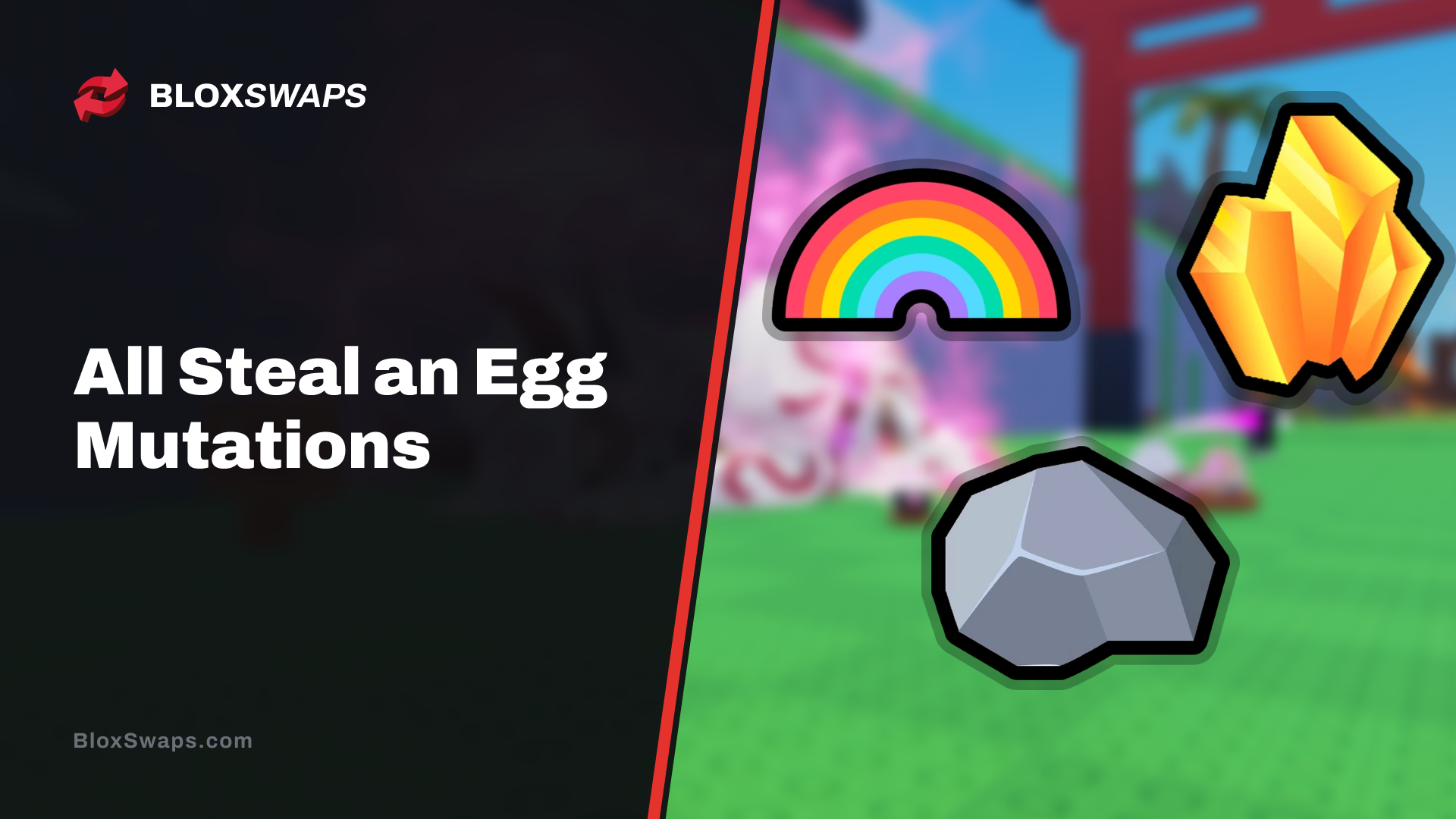
Se alla mutationer i ”Steal An Egg” och deras multiplikatorer, från Rainbows 3,5x-boost till Silvers enklaste 1,2x, samt hur du får tag på var och en av dem.
Förbättra din träffsäkerhet i MM2 Aim Trainer med anpassade markörkoder! Upptäck de bästa stilarna för precision, synlighet och rolig anpassning.
 Murder Mystery 242 artiklar
MM2 driver en ranglista där alla förmågor rankas från S till D, med exakta priser, nedkylningstider och när var och en
Lär dig mer om de vanligaste MM2-bedrägerierna, inklusive falska mellanhänder, förtroendetransaktioner och nätfiske, samt praktiska tips för att skydda dig
Alla nuvarande och utgångna MM2-lådor med priser, godlies och fullständiga tabeller över drop-frekvenser för varje kniv, vapen och föremål som finns i dem.
 Adopt Me37 artiklar
Praktiska tips för handel med Adopt Me för att snabbare utöka ditt lager genom att tolka den verkliga efterfrågan, undvika dåliga affärer och
Se när nästa uppdatering av Adopt Me släpps, vad New Egg har att erbjuda och om det veckovisa Admin Abuse-evenemanget fortfarande pågår
Kitty Bat lämnade Adopt Me:s Halloween-evenemang den 3 november 2025. Här kan du läsa hur den tämdes och hur du kan skaffa en nu genom handel
 Blox Fruits21 artiklar
En genomgång av alla fiskespön, beten och förtrollningar i Blox Fruits, samt hur Angler, förtroendenivåer och sjunkna kistor fungerar tillsammans.
Alla raser i Blox Fruits förklaras, från de fyra startraserna till Ghoul, Cyborg och Draco, samt hur versionerna V1 till V4 låses upp i spelet.
Lär dig vad Blox Fruits-tillbehören gör, hur du får tag på dem och viktiga regler som antalet utrustningsplatser per karaktär
 99 Nights in the Forest11 artiklar
99 Nights in the Forest – Hard Mode förklarat, inklusive hur man låser upp det, korruptionsmätaren, rift-tillstånd och de bästa klasserna för att överleva.
Se alla aktiva märken i 99 Nights in the Forest, hur sällsynta de är och vad som krävs för att tjäna dem, inklusive de senaste evenemangsmärkena.
En komplett byggguide för 99 Nights in the Forest som täcker alla nivåer av hantverksbänkar, byggkostnader och de bästa försvarsföremålen mot räder
En översikt över rankningsläget i Roblox Rivals, alla rankningar och ELO-trösklar, krav för att låsa upp nivåer samt hur ELO-vinster och -förluster fungerar.
Lär dig hur du säger upp Roblox Plus på dator, iOS och Android, och ta reda på exakt vad som händer med dina rabatter, Robux och förmåner
Lär dig alla sätt att öka din hastighet i +1 Speed Keyboard Escape, från gratispaket och sociala koder till återfödelser, löpband, stigar och auras.
Alla aktiva och utgångna Rivals-koder, hur man löser in dem i spelet, vilka krav som gäller först och var nya koder publiceras.
99 Nights in the Forest – Hard Mode förklarat, inklusive hur man låser upp det, korruptionsmätaren, rift-tillstånd och de bästa klasserna för att överleva.
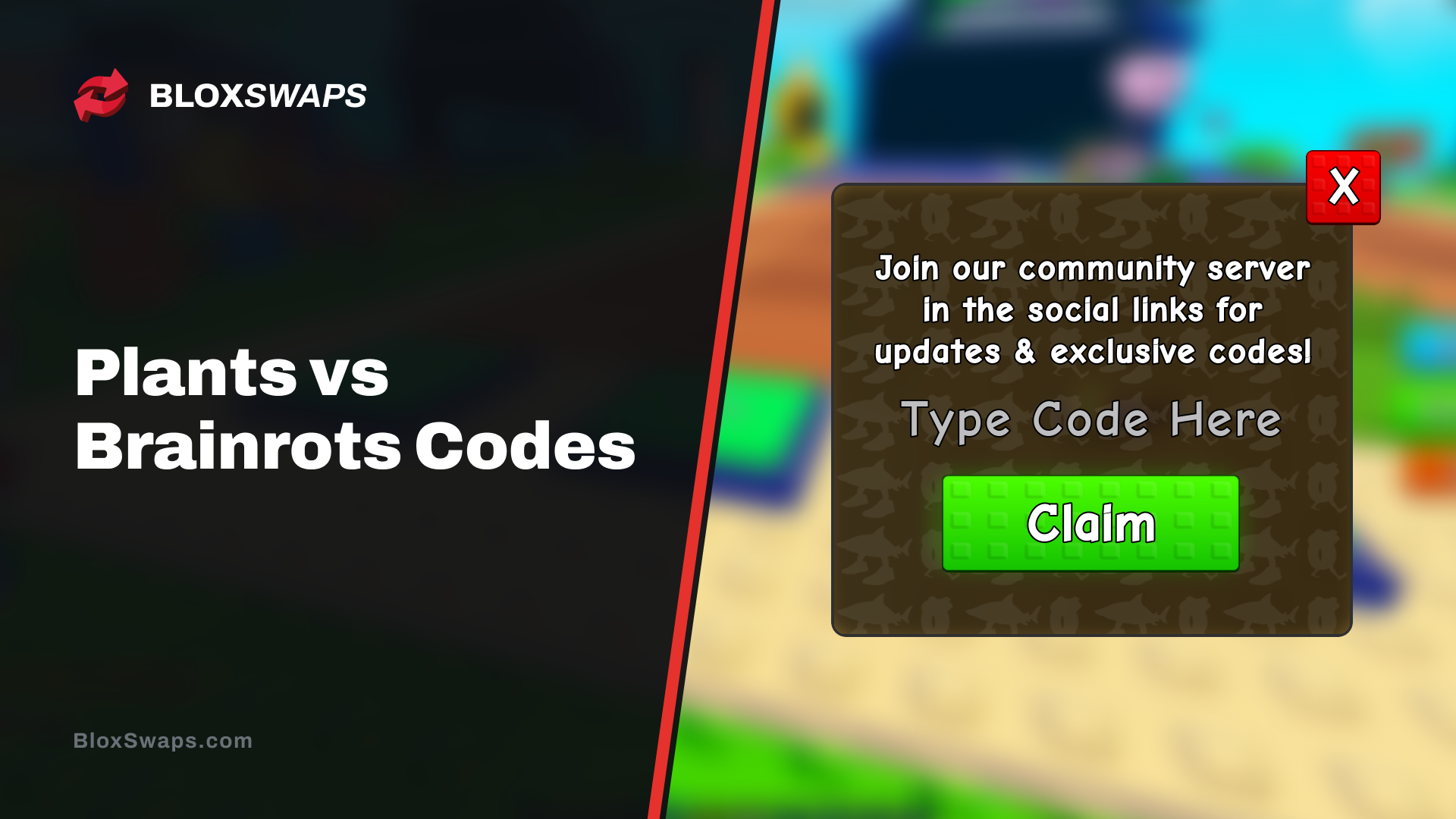
Alla aktiva koder för Plants vs Brainrots och vad de ger, samt hur man löser in dem och var nya koder publiceras först för att få kontanter och drycker.
Se alla aktiva märken i 99 Nights in the Forest, hur sällsynta de är och vad som krävs för att tjäna dem, inklusive de senaste evenemangsmärkena.
En komplett byggguide för 99 Nights in the Forest som täcker alla nivåer av hantverksbänkar, byggkostnader och de bästa försvarsföremålen mot räder
Se alla vapen i 99 Nights in the Forest, inklusive skadesiffror, samt exakt var varje vapen kan hittas eller hur man låser upp det.
Se alla typer av kultister i 99 Nights in the Forest, från fiender i Night Raid till kultistkungen, samt vad var och en av dem släpper och var man hittar dem.
Se hur ofta 99 Nights in the Forest uppdateras, när nästa uppdatering väntas och vad som är bekräftat om Update Party-evenemanget.
Se alla klasser i 99 Nights in the Forest rankade, från Cyborg och Necromancer i toppen till vilka billiga nybörjarval som faktiskt är värda att köpa.