

How to Block Someone on Roblox (2026)
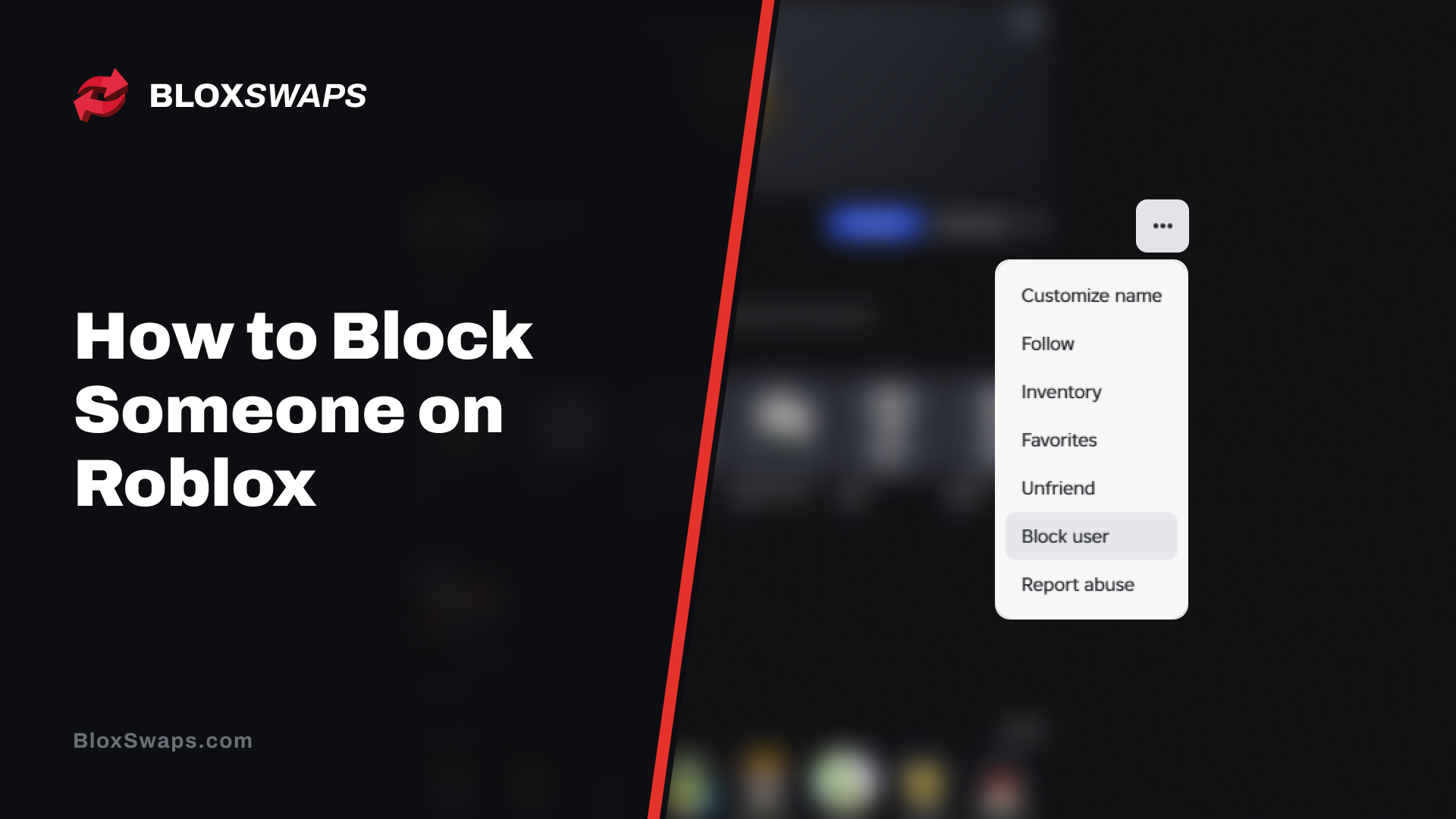
Roblox brings millions of players together, and not every interaction is a pleasant one. Spam messages, harassment, scam attempts, and players who keep following you between servers are common problems, and they make the game hard to enjoy.
Roblox gives you tools to deal with this, and blocking is the most direct one. It cuts off contact with a specific player, but the steps change depending on where you are on the platform and which device you use.
In this article, we'll explore how to block someone on Roblox from the website, the mobile app, and inside an experience, what changes once a player is blocked, how to unblock them, and how to tell if someone has blocked you.
How to Block Someone on Roblox
Roblox lets you block a player from three places, and the result is the same in all of them. The only difference is where you start. If you already know the username, the profile page is the fastest route. If the player is in your server right now, you can block them without leaving the game.
On the Website
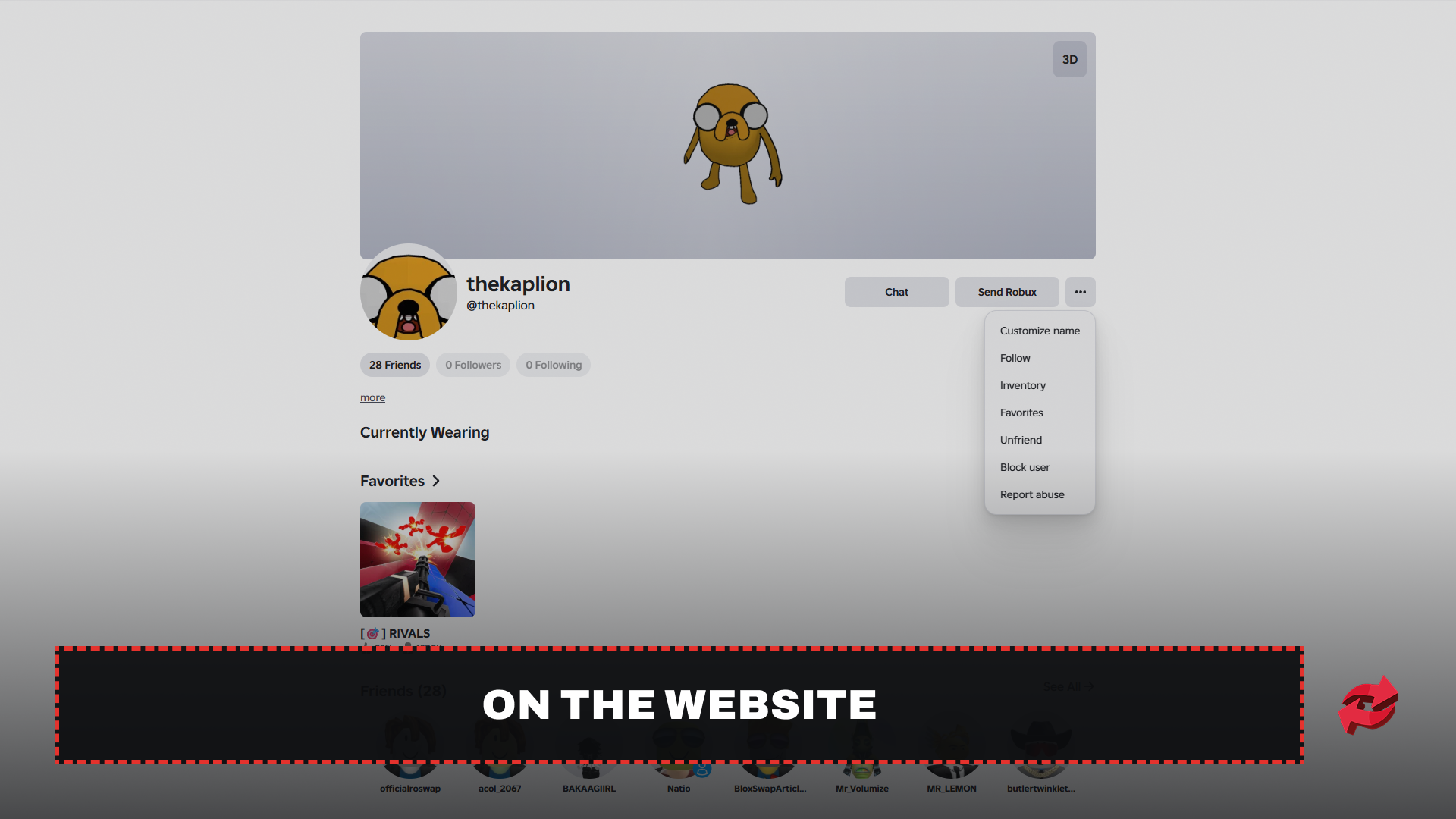
Blocking from the website works through the player's profile page. You can reach it by searching their username or by clicking their name anywhere on the site.
Go to the player's profile page.
Click the three dots in the upper-right corner of the profile details section.
Click Block User.
Once confirmed, the player can no longer message you, send you a friend request, or invite you to experiences.
On the Mobile App
The mobile app uses the same profile method as the website. This is also the method to stick with on a phone, since the in-game player list may not show up on small screens.
Open the player's profile in the Roblox app.
Tap the three dots in the upper-right corner of the profile details section.
Tap Block User.
Inside an Experience
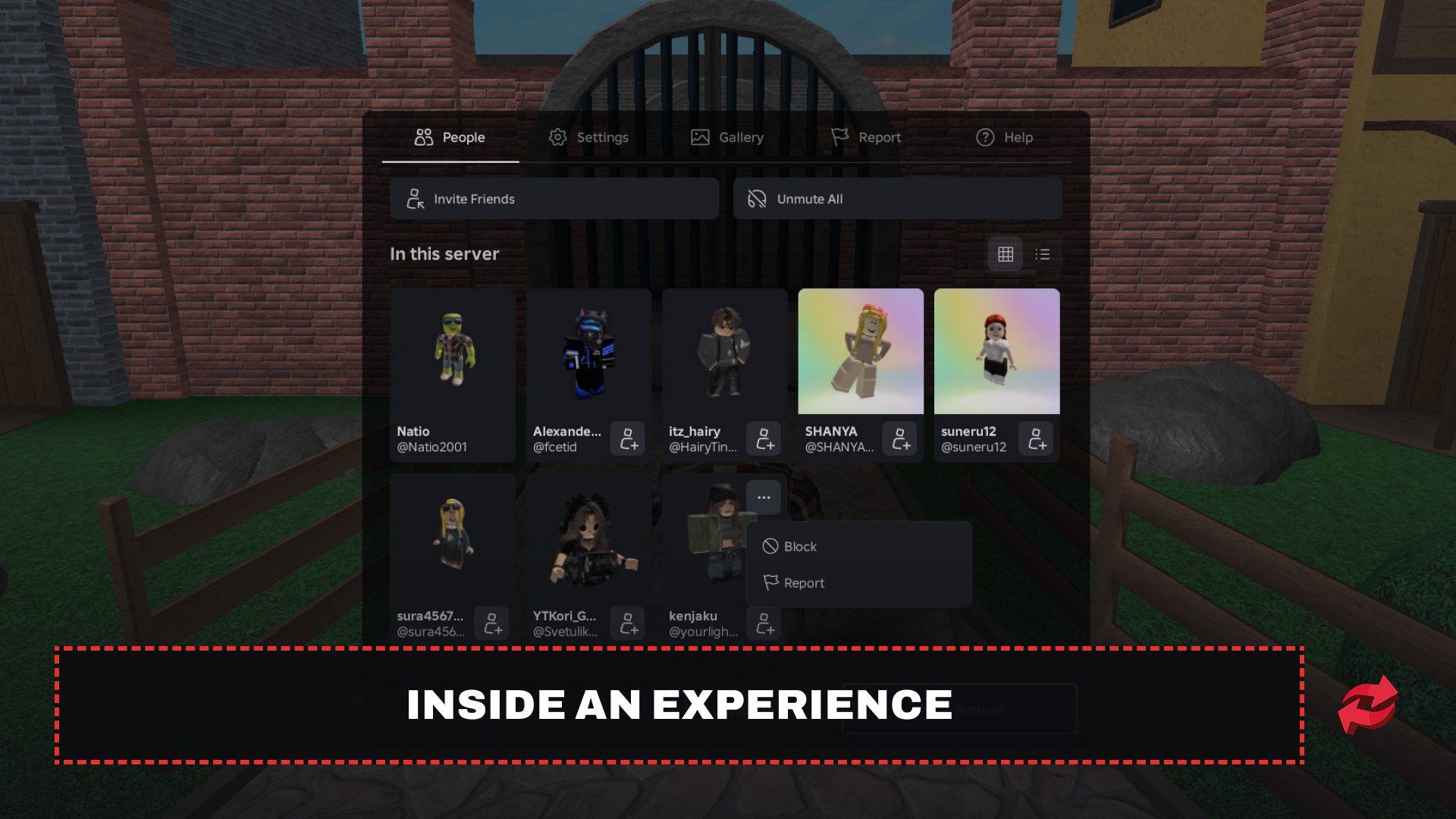
If someone is bothering you mid-game, you can block them without leaving the server. Roblox gives you two ways to do it on desktop, and the first one is the quickest.
The first option is the leaderboard.
Find the player in the leaderboard in the upper-right corner of the screen. If the list is closed, press the Tab key.
Click the player’s name.
Click Block in the drop-down menu.
The icon next to their name turns into a circle with a line through it, which confirms the block went through. Some experiences, like Murder Mystery 2, disable the default leaderboard because they use a custom one. If the leaderboard doesn’t show up or doesn’t give you a block option, the Esc menu works in almost every experience.
Press the Esc key and open the People tab.
Hover over the player you want to block.
Click the three dots that appear on their card.
Click Block and confirm.
Either way, the block applies to your whole account and not just the current experience.
What Happens When You Block Someone on Roblox
Blocking cuts off direct contact between you and the other player. Neither of you can send direct messages, friend requests, experience invites, or party invites to the other. If the player was on your friends list or following you, they are removed from both.
The other player is not notified. Roblox doesn't tell them you blocked them, and nothing shows up on their end when it happens. They usually find out only when they try to message you, add you, or invite you and it doesn't go through.
Blocking does not ban them from the game or move them to another server. If you both join the same public experience, you can still end up in the same server. They just can't talk to you directly, and their chat messages won't show up on your screen. If you want a completely clean server, you will need to leave and join another one.
How to Unblock Someone on Roblox
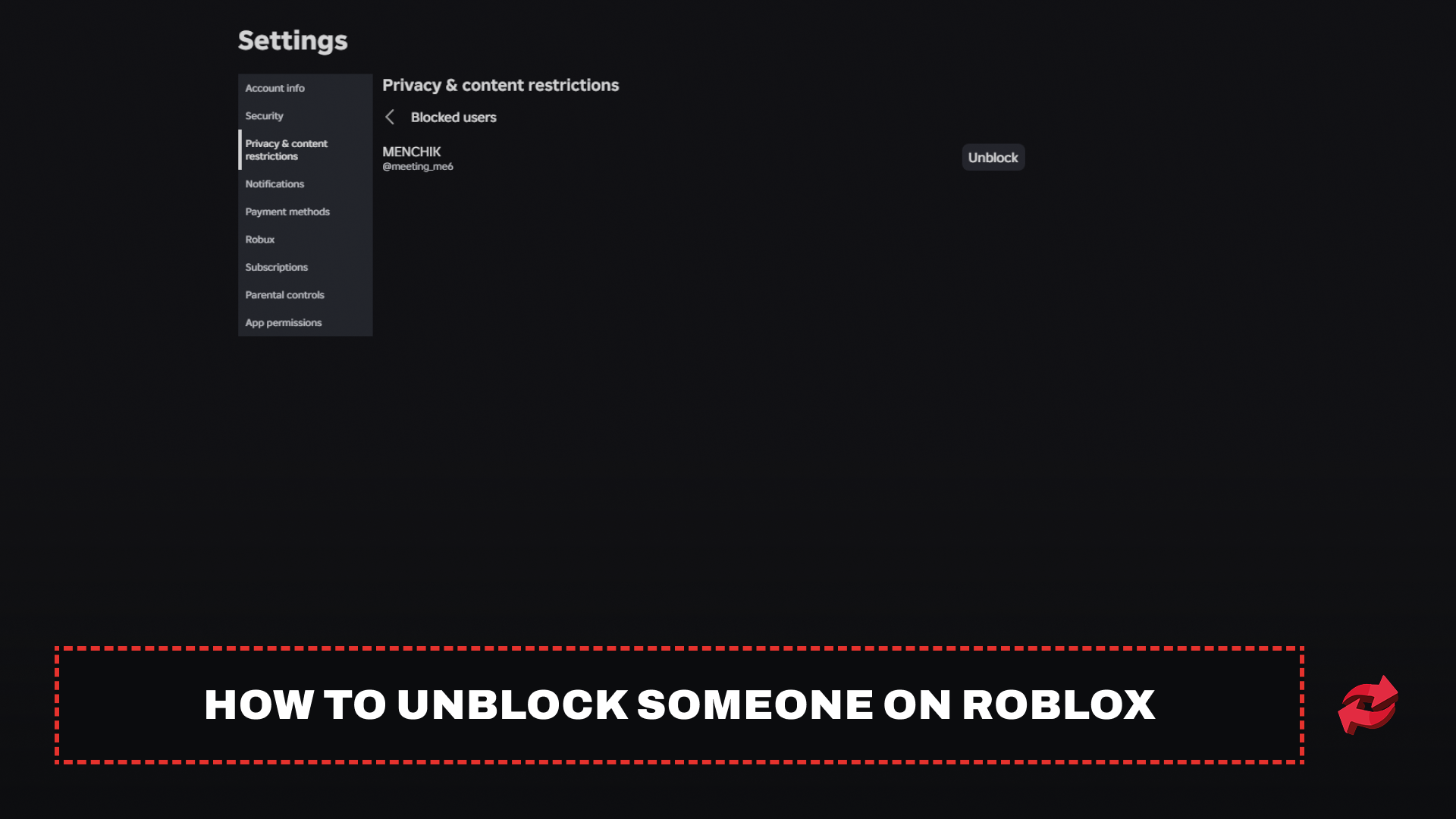
Unblocking is just as quick as blocking, and the blocked users list is where you do it. It sits inside your privacy settings, so the steps are almost the same on the website and the mobile app.
On the website, follow these steps:
Open Roblox and go to Settings.
Open Privacy & content restrictions.
Open Blocked users.
Find the player and click Unblock.
On the mobile app, the path is slightly different.
Tap the More menu (the three dots).
Tap Settings, then Privacy & content restrictions.
Open Blocked users.
Find the player and tap Unblock.
If the player happens to be in the same server as you, there is a faster way. Open the leaderboard, or press Tab, click the player's name, and choose Unblock from the drop-down menu.
If you can't open the blocked list, the account may be locked by an Account PIN or parental controls. In that case, the PIN has to be entered before any privacy setting can be changed.
How to Tell If Someone Blocked You on Roblox
Roblox doesn't notify you when someone blocks you, and there is no official list of who blocked you. The only way to find out is to look for signs, and no single sign proves it. A pattern that repeats for several days is a much stronger hint.
The clearest sign is a friend who disappears from your friends list. A block removes the friendship on both sides, so if someone vanished without you unfriending them, that is worth noting. Direct contact also stops working. Your messages fail to send, friend requests don't go through, and you can't invite them to an experience or party.
Chat is another place to look. If you share a server, a player who blocked you can still appear in it, but their chat messages won't show up on your screen, and yours won't reach them. Other players may be talking to them normally while you see nothing.
If you only notice one of these signs, a glitch or a privacy setting is the more likely cause. A removed friend, failed messages, and silent chat all together make a block far more likely.
Final Words
Blocking someone on Roblox takes a few clicks from a profile, the leaderboard, or the Esc menu. It stops direct contact, the other player is never notified, and you can undo it anytime from your privacy settings.
A block won't move the player out of your server, so leave and rejoin if you want a clean one. Blocking also only changes what you see and receive, so use Report Abuse as well when a player breaks the rules.
FAQs About Blocking on Roblox
Game in this Article
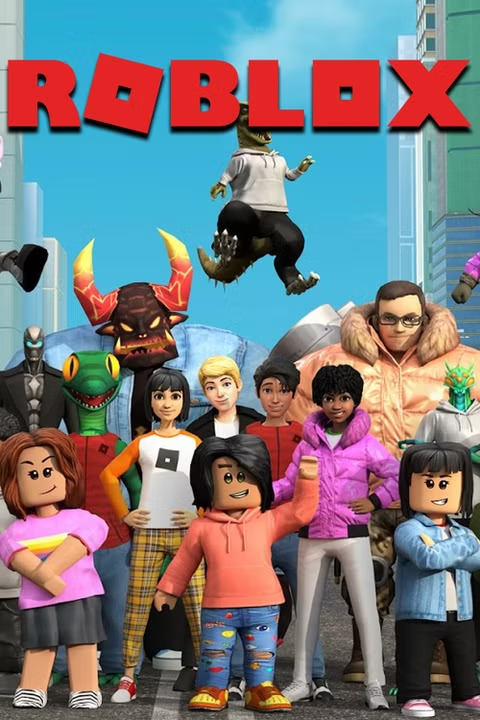
Roblox is an online platform where players create and play games built by other users. It features a wide range of genres, from simulators and roleplay to obbies and tycoons. Players use Robux, the platform's currency, to purchase items, avatar accessories, and in-game upgrades.
Written by
Mustafa is the SEO Manager at BloxSwaps and a digital marketing specialist with a focus on gaming platforms. He covers trading guides, game updates, and platform content, helping players navigate the tools and systems they use every day.