

How to Uninstall Roblox: Step-by-Step Guide

Roblox is a free online platform where players jump into millions of games made by other users, from obbies and tycoons to full RPGs. It runs on Windows, Mac, iPhone, Android, and Xbox, and it's built on user-made content, so there's always something new to play.
Still, there are plenty of reasons to remove it. Some people need the storage back, some have a broken installation that keeps crashing, and others just want a break. A basic uninstall doesn't always clear everything, though. Leftover files, cache folders, and a separate Roblox Studio install can stay behind, and the steps change from device to device.
In this article, we'll explore how to uninstall Roblox on Windows, Mac, iPhone, Android, and Xbox, how to remove Roblox Studio, and how to delete the leftover files on Windows and Mac so nothing stays behind.
How to Uninstall Roblox
Roblox installs differently on each device, so the way you remove it changes too. Windows and Mac use system settings or Finder, while phones and consoles treat it like any other app. Below are the steps for each device, including Roblox Studio if you installed it. Close Roblox before you start, since a running app can block the uninstall.
How to Uninstall Roblox on Windows
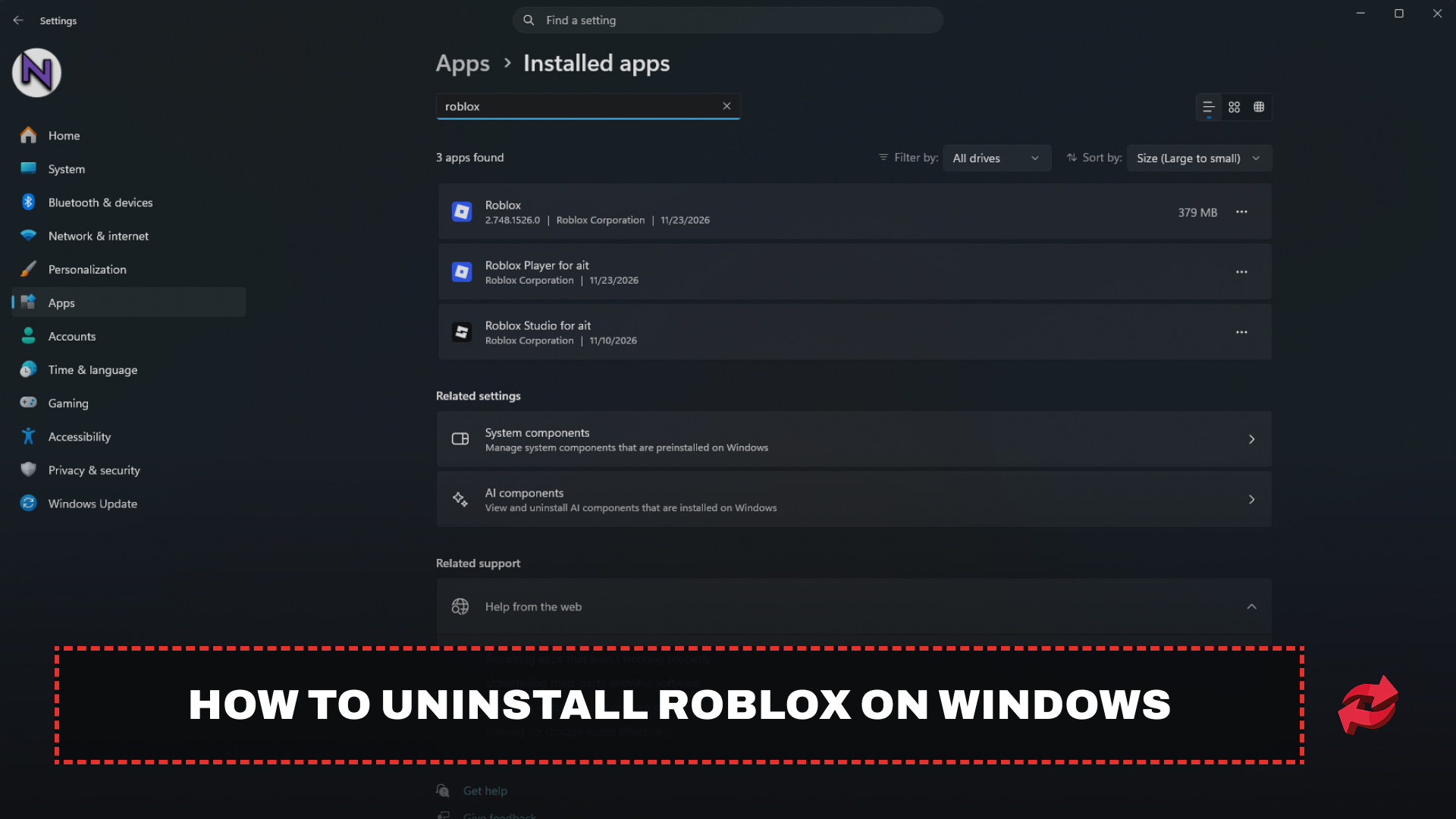
On Windows 10 and 11, you remove it through Settings. Here's how:
Open Start > Settings > Apps > Installed apps (Apps & features on some Windows 10 versions).
Find Roblox in the list and click the three dots next to it. On Windows 10, click Roblox instead.
Select Uninstall and confirm.
Older versions of Windows can use Control Panel > Programs and Features instead. Select Roblox there and click Uninstall.
How to Uninstall Roblox on Mac
On Mac, you move the app to the Trash. Press Command + Option + Esc to open Force Quit and close Roblox first if it's running.
Open Finder and go to Applications.
Right-click Roblox and select Move to Trash.
Empty the Trash.
The app is gone after this, but some cache and settings files stay on your Mac. We'll cover those in the leftover files section below.
How to Uninstall Roblox on iPhone and Android
On iPhone and iPad, press and hold the Roblox icon on your home screen or in the App Library, then tap Remove App and confirm with Delete App.
On Android, you can uninstall it through the Play Store.
Open the Google Play Store and tap your profile icon.
Tap Manage apps & devices, then Manage.
Select Roblox and tap Uninstall.
You can also open your app drawer, hold Roblox, and drag it to Uninstall.
How to Uninstall Roblox on Xbox
On Xbox One, you can uninstall it from the My apps & games menu.
Press the Xbox button and open My apps & games.
Go to Games and highlight Roblox.
Press the Menu button and select Uninstall.
How to Uninstall Roblox Studio
Roblox Studio is a separate install from the Roblox app, so removing one doesn't remove the other. It only exists on Windows and Mac. On Windows, find Roblox Studio in Installed apps and uninstall it the same way. On Mac, drag Roblox Studio from Applications to the Trash.
How to Completely Remove Leftover Roblox Files
Uninstalling Roblox removes the app, but not everything it created. Cache and settings files can stay on your device, take up space, and carry over into a reinstall. Do this if you want a clean removal or plan to reinstall Roblox to fix a problem. If you only want to free up space and keep Roblox, clearing the Roblox cache is the lighter option.
How to Delete Leftover Roblox Files on Windows
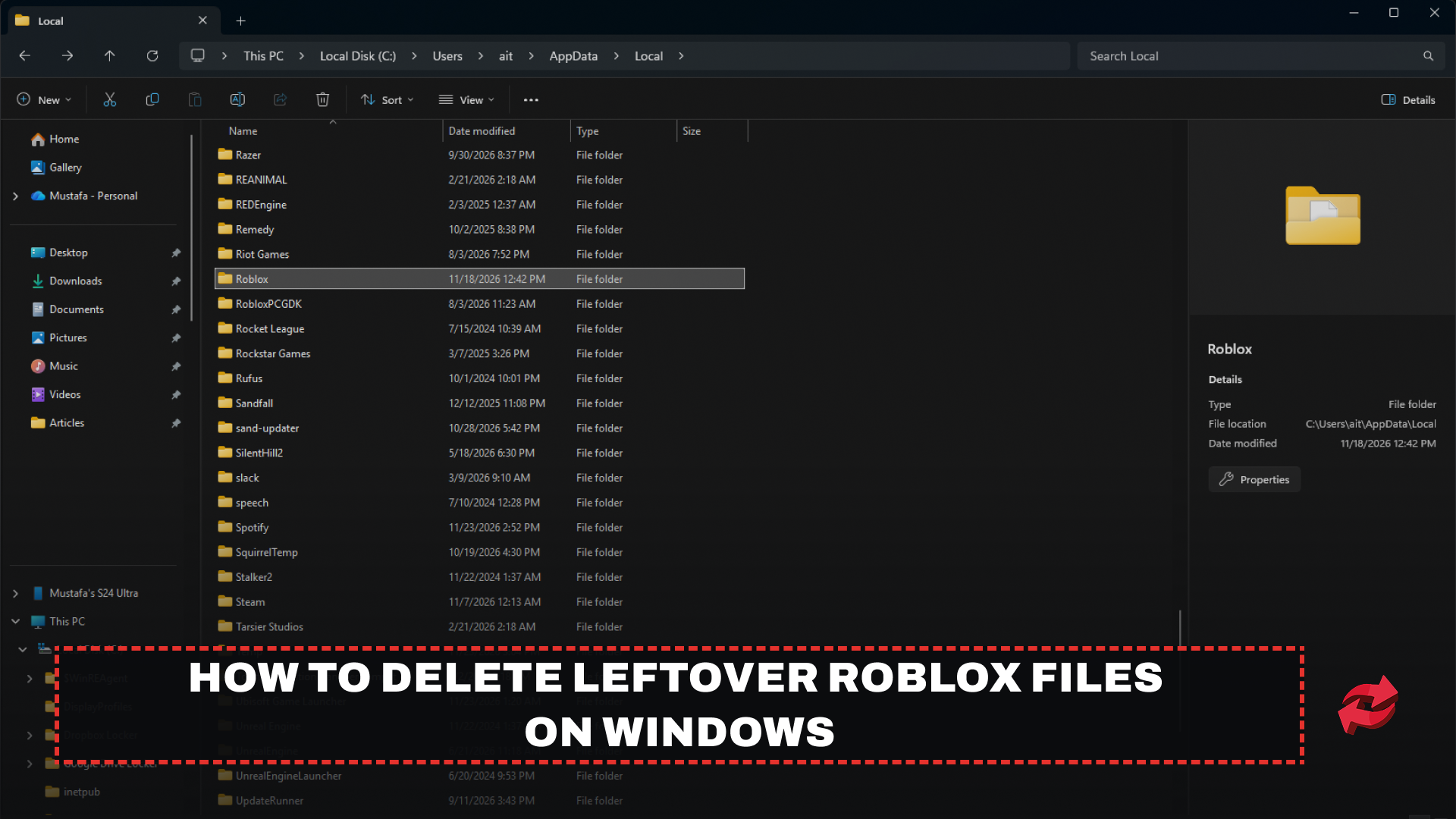
Close Roblox and Roblox Studio first, then delete the leftover Roblox folder.
Open File Explorer.
Go to
C:\Users\[your username]\AppData\Local. If you can't see AppData, turn on hidden items in the View menu.Delete the Roblox folder.
Places you saved in Studio are kept unless you saved them inside that folder, so move any Studio files out of it first. If you installed Roblox from the Microsoft Store, the folder sits under Packages inside the same Local folder instead.
If you'd rather not search for folders by hand, you can use Revo Uninstaller. It's a third-party uninstaller that removes Roblox and then scans for the files it left behind, so you can delete them in one go. Revo Uninstaller is only available for Windows, so Mac users should follow the Mac steps below.
How to Delete Leftover Roblox Files on Mac
Mac keeps these files in your Library folder, which is hidden by default. Finder can take you straight to it.
Open Finder and press Shift + Command + G.
Type
~/Library/Cachesand press Enter.Move the Roblox folder to the Trash. It may appear as com.roblox.roblox.
Repeat for
~/Library/Preferencesand~/Library/Saved Application State, moving anything with Roblox in the name to the Trash.Empty the Trash.
Only delete items with Roblox in the name. These folders hold data for every app on your Mac, and removing other files can cause problems elsewhere.
Final Words
Uninstalling Roblox takes a few clicks on every device, but the app isn't the only thing that stays on your system. Remove Roblox Studio separately if you installed it, and delete the leftover folders on Windows and Mac if you want a clean removal.
Your account isn't touched either way, so you can sign in again on any device whenever you come back. If you want the account gone as well, our guide on how to delete your Roblox account walks you through it.
FAQs About Uninstalling Roblox
Game in this Article
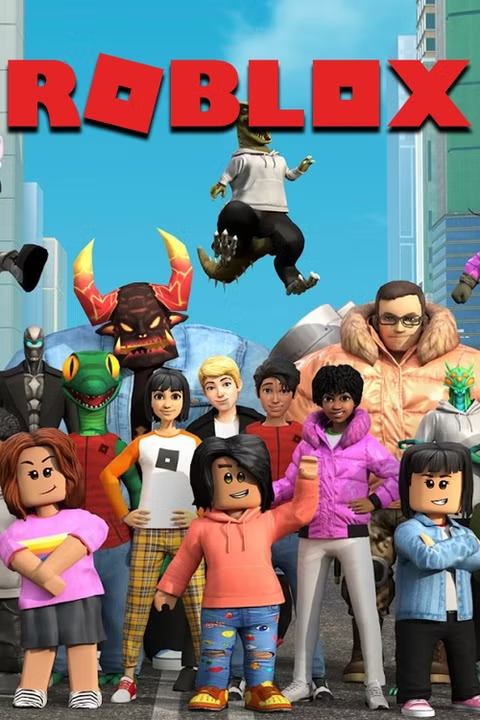
Roblox is an online platform where players create and play games built by other users. It features a wide range of genres, from simulators and roleplay to obbies and tycoons. Players use Robux, the platform's currency, to purchase items, avatar accessories, and in-game upgrades.

Written by
Mustafa is the SEO Manager at BloxSwaps and a digital marketing specialist with a focus on gaming platforms. He covers trading guides, game updates, and platform content, helping players navigate the tools and systems they use every day.