सभी सक्रिय BloxSwaps कोड (2026)
सभी सक्रिय BloxSwaps कोड प्राप्त करें और बोनस कॉइन्स के लिए उन्हें रिडीम करने का तरीका जानें। BloxSwaps पर कोड सिस्टम और ट्रेडिंग मीलस्टोन्स के लिए पूर्ण गाइड।


हमारी टीम के नवीनतम विचार, अपडेट और कहानियां खोजें
सभी सक्रिय BloxSwaps कोड प्राप्त करें और बोनस कॉइन्स के लिए उन्हें रिडीम करने का तरीका जानें। BloxSwaps पर कोड सिस्टम और ट्रेडिंग मीलस्टोन्स के लिए पूर्ण गाइड।
Roblox में हर सक्रिय और समाप्त हो चुके MM2 कोड को देखें, साथ ही इन्वेंटरी मेनू के माध्यम से उन्हें मुफ्त एक्सक्लूसिव के लिए रिडीम करने का तरीका
उपलब्ध सर्वश्रेष्ठ ट्रेडिंग वेबसाइटों के साथ MM2 आइटम्स को सुरक्षित रूप से ट्रेड करें। स्वचालित प्लेटफ़ॉर्म, पीयर-टू-पीयर साइटों की तुलना करें, और
MM2 Aim Trainer में कस्टम कर्सर कोड के साथ अपने निशाने को बेहतर बनाएं! सटीकता, दृश्यता और मज़ेदार निजीकरण के लिए सर्वश्रेष्ठ शैलियों का अन्वेषण करें।
जानें कि MM2 गॉडली क्या है, हर कोई इसे पाने के लिए इतना उत्सुक क्यों है। और अपने लिए गॉडली कैसे प्राप्त करें!
क्या आप MM2 ऑटो फार्म स्क्रिप्ट्स का उपयोग करने पर विचार कर रहे हैं? जानें कि वे कैसे काम करती हैं, इसमें शामिल जोखिम क्या हैं, और क्या यह एक अच्छा विचार है?
MM2 में कॉइन्स फार्म करने के सबसे तेज़ तरीकों, उपयोग करने के लिए सर्वश्रेष्ठ मैप्स, और क्या एलीट गेमपास खरीदना वाकई फायदेमंद है, जानें।
हर सक्रिय और समाप्त हो चुके Adopt Me कोड की जाँच करें, साथ ही एजेंट रूही के पास Safety Hub कियोस्क पर मुफ्त बक्स रिडीम करने का तरीका
MM2 सीज़न 2 अभी तक लॉन्च नहीं हुआ है, लेकिन संकेत तेज़ी से बढ़ रहे हैं। यहाँ प्रशंसकों द्वारा एकत्रित किए गए संकेत, लीक और अपेक्षित सुविधाएँ हैं।
Adopt Me में एडमिन दुरुपयोग क्या है, अगली इवेंट कब निर्धारित है, और मुफ्त पुरस्कारों में शामिल होने और उन्हें क्लेम करने के सटीक चरण जानें।
 Murder Mystery 242 लेख
MM2 S से D तक प्रत्येक पर्क की रैंकिंग को पावर देता है, सटीक कीमतों, कूलडाउन के साथ, और यह भी बताता है कि प्रत्येक पर्क वास्तव में कब राउंड जीतता है।
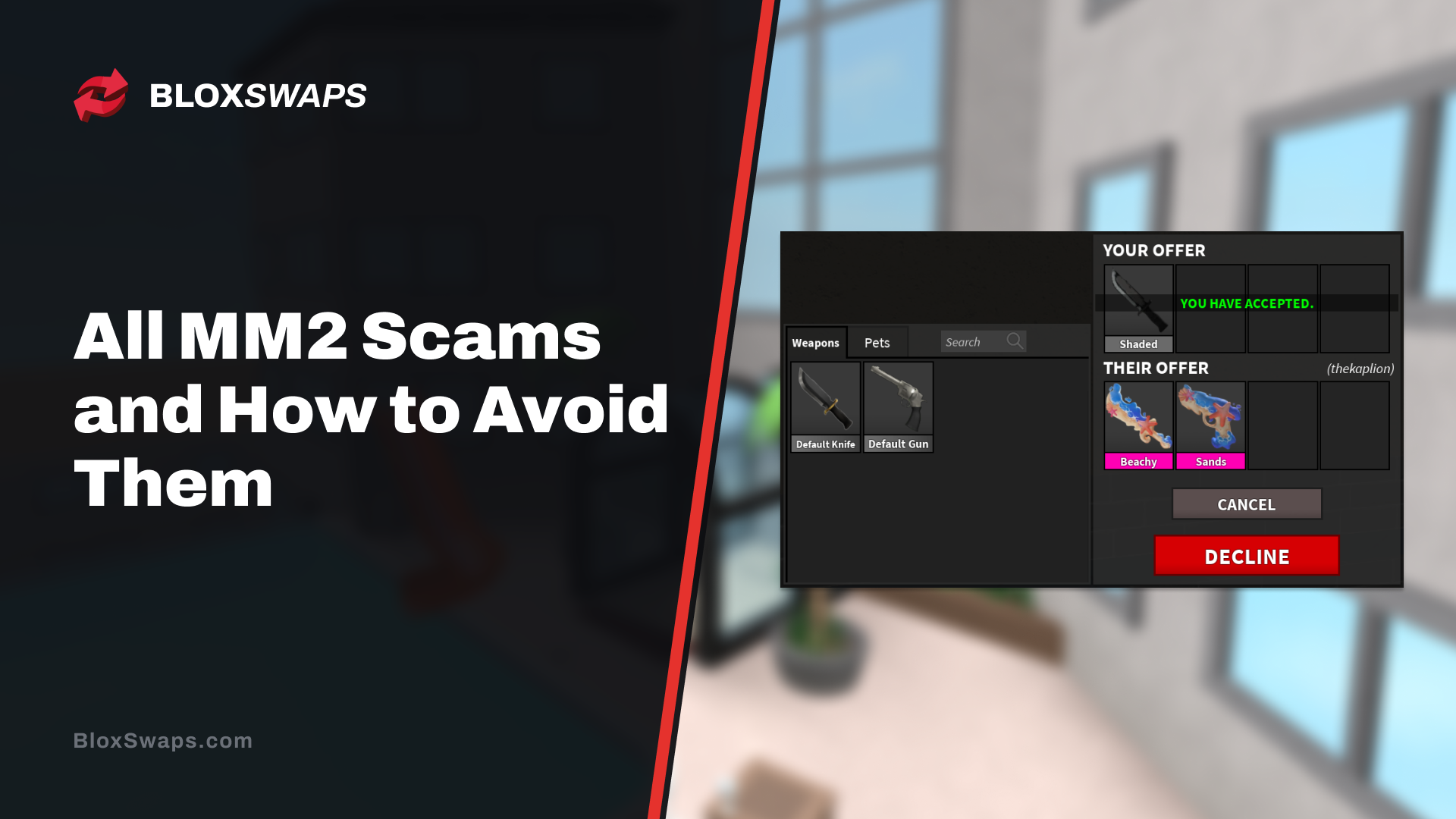
सबसे आम MM2 घोटालों के बारे में जानें, जिनमें नकली दलाल, ट्रस्ट ट्रेड्स और फ़िशिंग शामिल हैं, साथ ही अपनी इन्वेंटरी की सुरक्षा के लिए व्यावहारिक सुझाव
MM2 आइटम मूल्यों की जाँच के लिए सर्वश्रेष्ठ स्थानों की तुलना करें, जिनमें BloxSwaps, MM2Values, Traderie, Supreme Values और MM2 शामिल हैं।
 Adopt Me38 लेख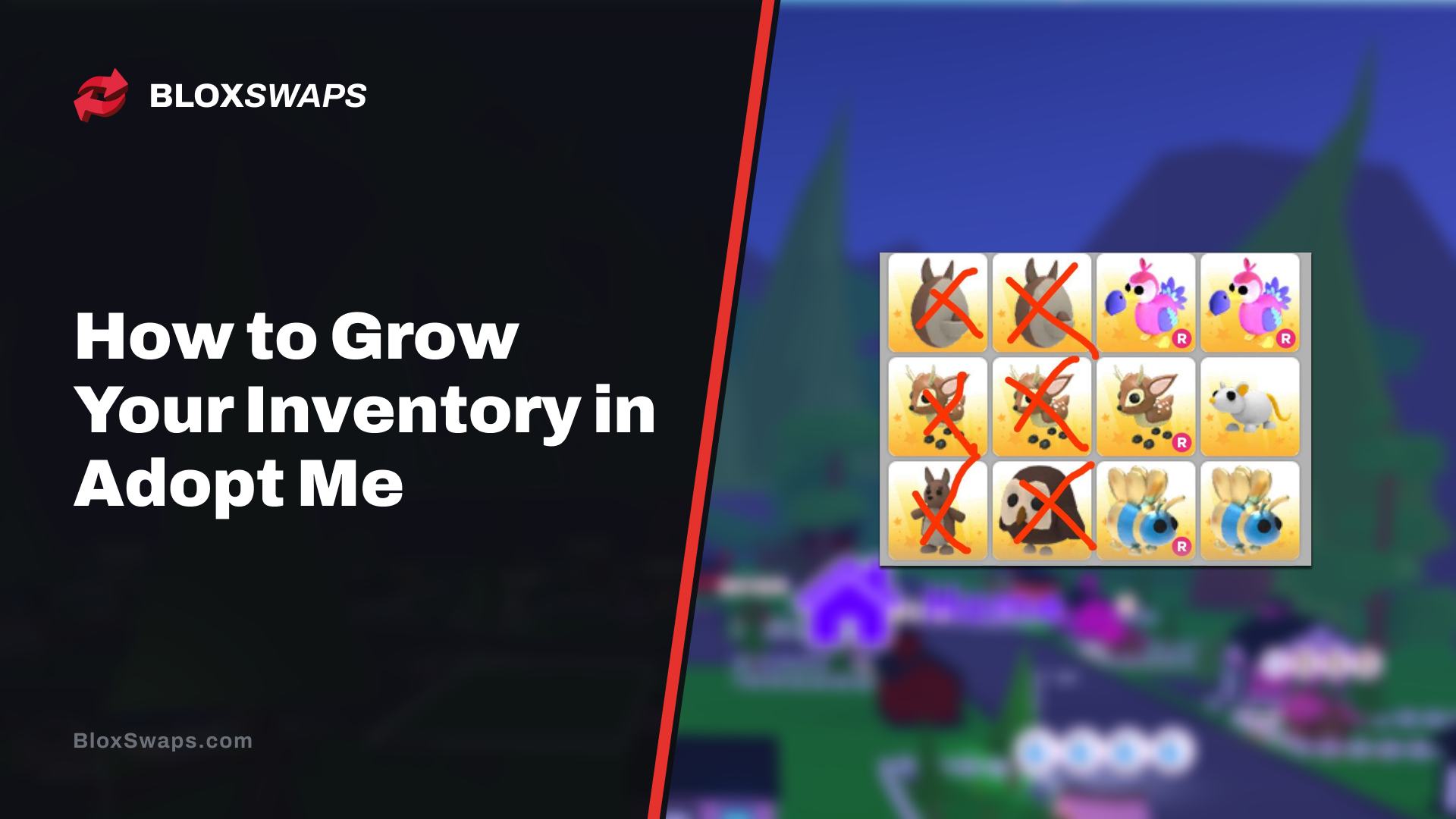
वास्तविक मांग को समझकर, खराब ट्रेडों से बचकर, और इवेंट्स का बुद्धिमानी से उपयोग करके अपनी इन्वेंटरी को तेजी से बढ़ाने के लिए व्यावहारिक Adopt Me ट्रेडिंग टिप्स।
देखें कि अगला Adopt Me अपडेट कब आएगा, New Egg क्या लेकर आएगा, और क्या साप्ताहिक Admin Abuse इवेंट अभी भी चल रहा है
किटी बैट ने 3 नवंबर, 2025 को एडॉप्ट मी के हैलोवीन इवेंट को छोड़ दिया। यहाँ बताया गया है कि इसे कैसे वश में किया गया और इसे कैसे प्राप्त किया जाए।
 Blox Fruits21 लेख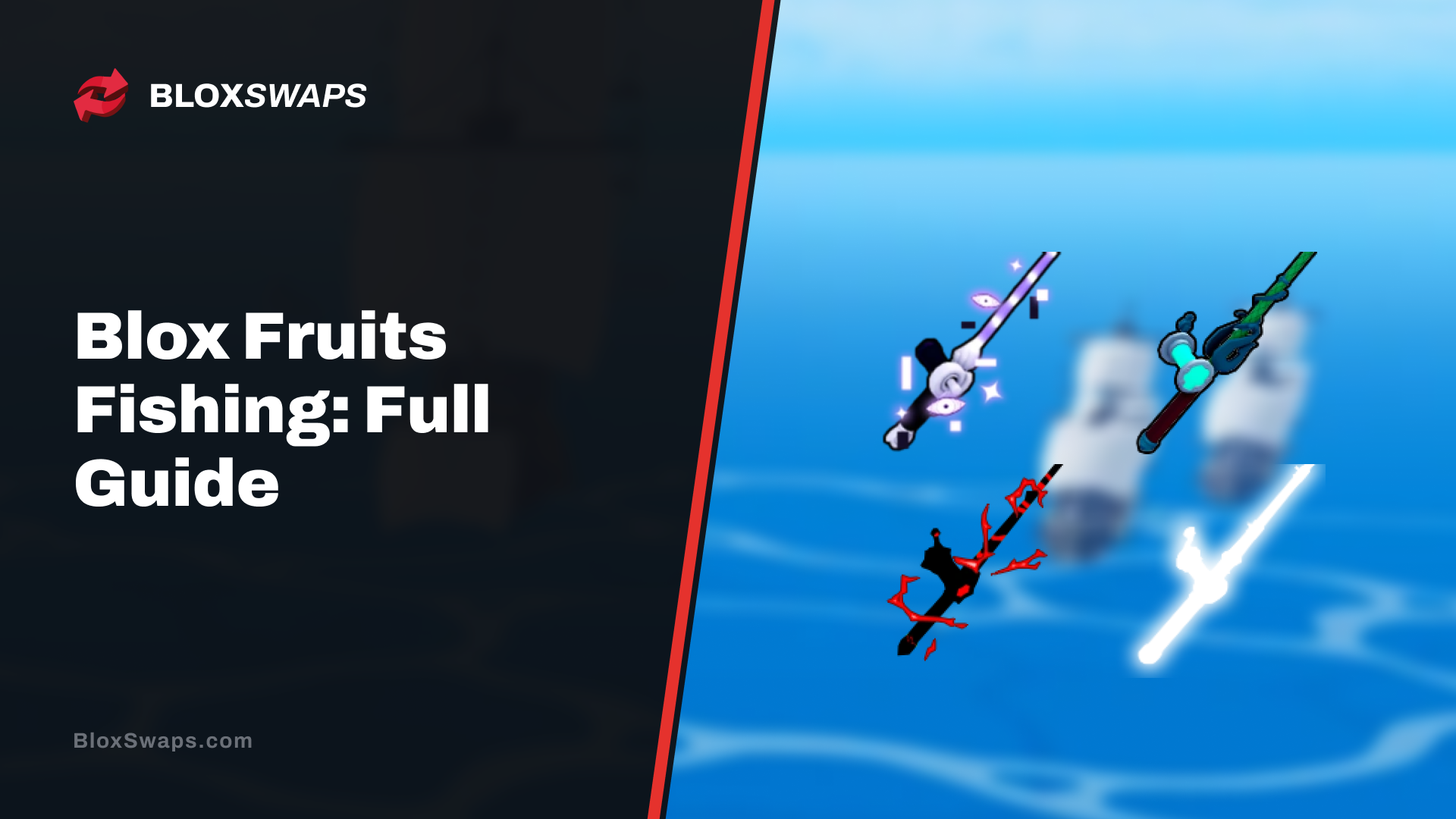
हर Blox Fruits मछली पकड़ने की छड़ी, चारा और जादू का विवरण, साथ ही Angler, ट्रस्ट स्तर और डूबे हुए संदूकों का एक साथ कैसे काम करता है।
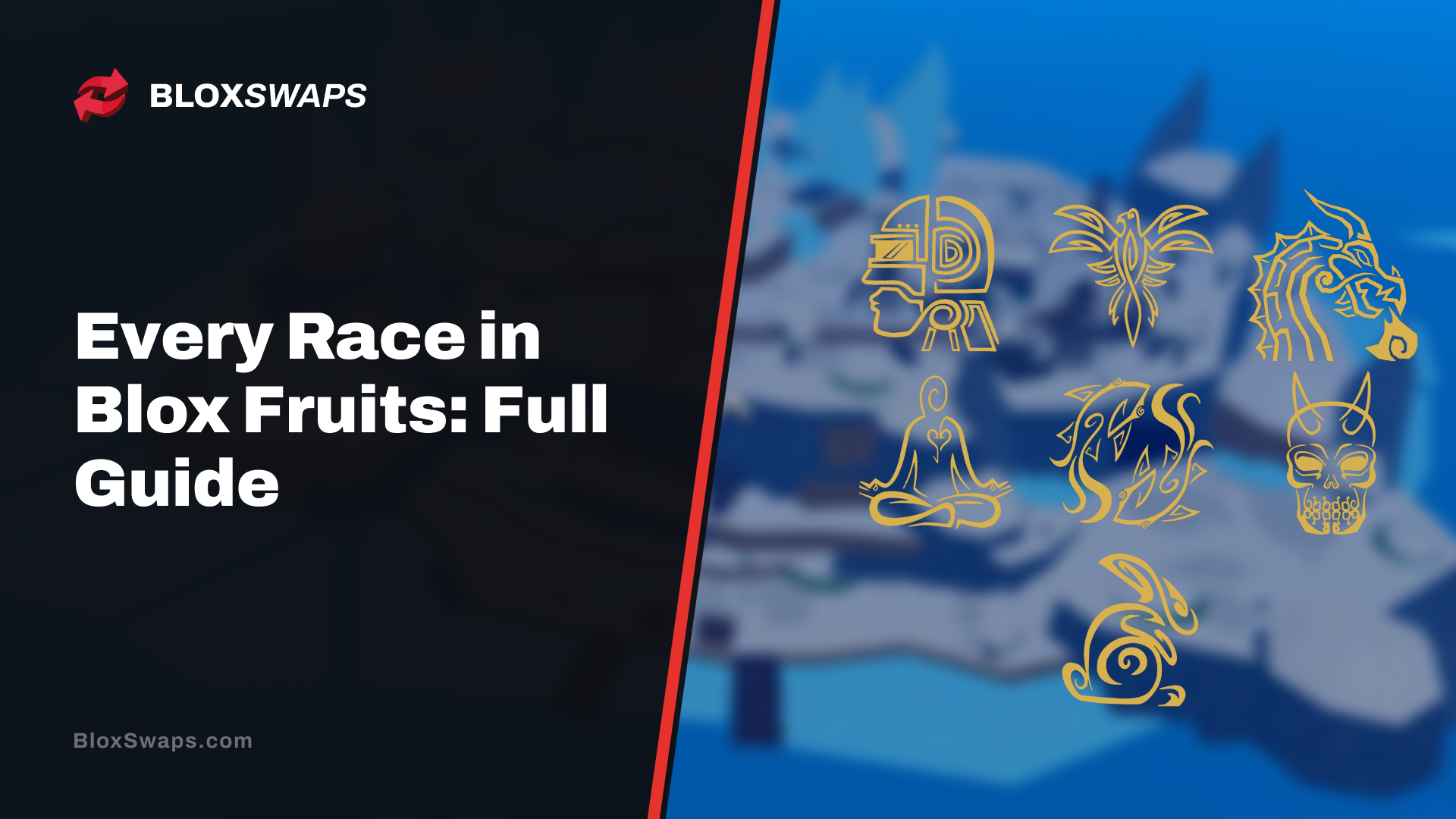
Blox Fruits में हर रेस की व्याख्या, चार स्टार्टर स्पॉन्स से लेकर घोल, साइबोर्ग और ड्रैको तक, साथ ही गेम में V1 से V4 संस्करण कैसे अनलॉक होते हैं।
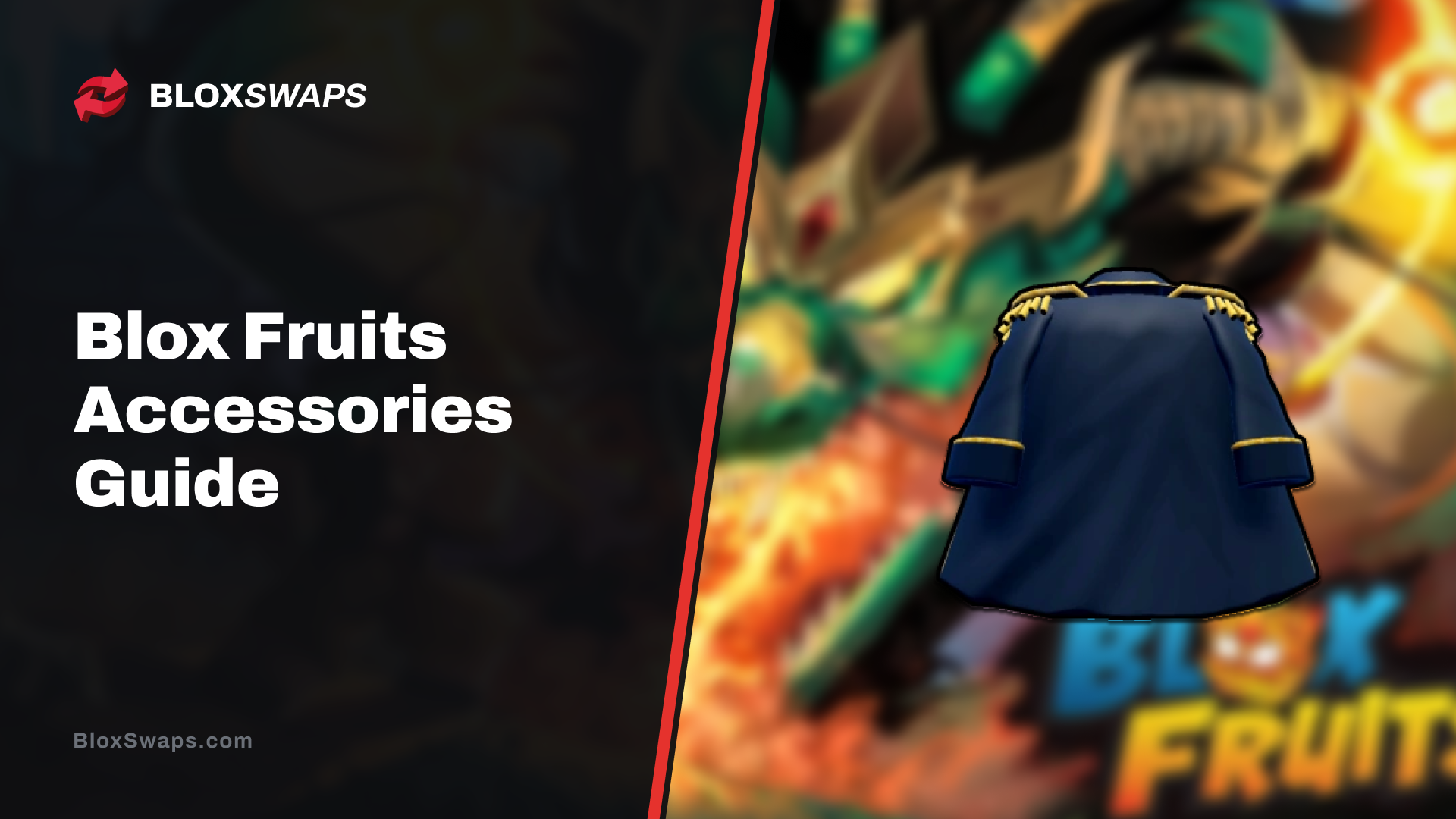
जानें कि Blox Fruits एक्सेसरीज़ क्या करती हैं, उन्हें कैसे प्राप्त करें, और एकल इक्विप स्लॉट, दुर्लभताएँ, और एडमिन एक्सक्लूसिव आइटम जैसे प्रमुख नियम।
 99 Nights in the Forest11 लेख
99 Nights in the Forest हार्ड मोड की व्याख्या, जिसमें इसे अनलॉक करने का तरीका, करप्शन मीटर, रिफ्ट स्टेट्स, और के लिए सर्वश्रेष्ठ क्लासेस शामिल हैं।
99 Nights in the Forest में हर लाइव बैज देखें, प्रत्येक कितनी दुर्लभ है, और इसे अर्जित करने के लिए क्या करना होता है, जिसमें नवीनतम इवेंट बैज भी शामिल हैं।
पूर्ण 99 Nights in the Forest बेस बिल्डिंग गाइड, जिसमें हर क्राफ्टिंग बेंच स्तर, संरचना की लागत, और हमलों के खिलाफ सर्वश्रेष्ठ रक्षा आइटम शामिल हैं
Roblox Rivals रैंक्ड मोड का ब्रेकडाउन, हर रैंक और ELO थ्रेशोल्ड, अनलॉक की आवश्यकताएँ, और ELO बढ़ने और घटने का काम कैसे करता है।
डेस्कटॉप, iOS और Android पर Roblox Plus को रद्द करना सीखें, और जानें कि समाप्त होने के बाद आपकी छूट, Robux और लाभों का क्या होता है।
+1 स्पीड कीबोर्ड एस्केप में अपनी स्पीड बढ़ाने के हर तरीके के बारे में जानें, फ्री गिफ्ट और सोशल कोड से लेकर रिबर्थ्स, ट्रेडमिल्स, ट्रेल्स और ऑरा तक।
हर सक्रिय और समाप्त हो चुके Rivals कोड, उन्हें इन-गेम कैसे रिडीम करें, पहले किन आवश्यकताओं को पूरा करें, और नए कोड कहाँ पोस्ट किए जाते हैं।
99 Nights in the Forest हार्ड मोड की व्याख्या, जिसमें इसे अनलॉक करने का तरीका, करप्शन मीटर, रिफ्ट स्टेट्स, और के लिए सर्वश्रेष्ठ क्लासेस शामिल हैं।
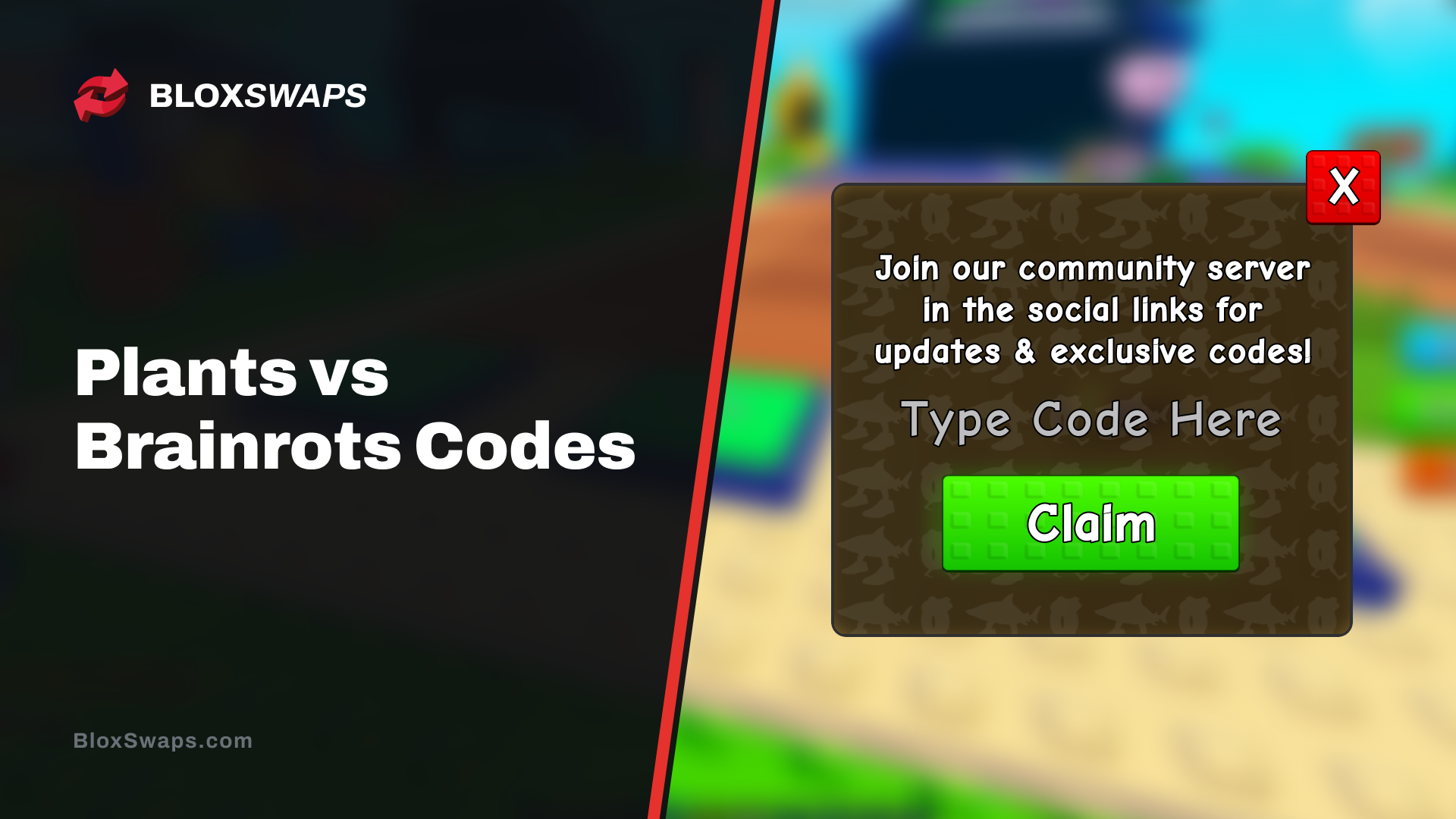
हर सक्रिय Plants vs Brainrots कोड और वह क्या इनाम देता है, साथ ही उन्हें रिडीम कैसे करें और नकद व पोटियनों के लिए नए कोड सबसे पहले कहाँ पोस्ट किए जाते हैं।
99 Nights in the Forest में हर लाइव बैज देखें, प्रत्येक कितनी दुर्लभ है, और इसे अर्जित करने के लिए क्या करना होता है, जिसमें नवीनतम इवेंट बैज भी शामिल हैं।
पूर्ण 99 Nights in the Forest बेस बिल्डिंग गाइड, जिसमें हर क्राफ्टिंग बेंच स्तर, संरचना की लागत, और हमलों के खिलाफ सर्वश्रेष्ठ रक्षा आइटम शामिल हैं
99 Nights in the Forest में हर हथियार देखें, क्षति संख्या सहित, साथ ही यह भी कि प्रत्येक कहाँ से मिलता है या इसे कैसे अनलॉक किया जाए।
99 Nights in the Forest में हर Cultist प्रकार देखें, Night Raid दुश्मनों से लेकर Cultist King तक, साथ ही हर एक क्या गिराता है और उन्हें कहाँ पाया जा सकता है।
जानिए 99 Nights in the Forest कितनी बार अपडेट होता है, अगला अपडेट कब आएगा, और Update Party इवेंट की पुष्टि क्या है।
देखें कि हर 99 Nights in the Forest क्लास को रैंक किया गया है, शीर्ष पर Cyborg और Necromancer से लेकर कौन सी सस्ती शुरुआती पसंद वास्तव में खरीदने लायक हैं।